
The "Workshop Infographics" page was created to streamline viewing the results of your workshop(s). Click "Workshop Events" in the menu, then Click "Workshop Infographic" or visit the following URL - https://ciscosecurityworkshop.com/workshop-events/workshop-infographics
To increase survey completion, please read the FAQ: How Can I Encourage Attendee Survey Completion?
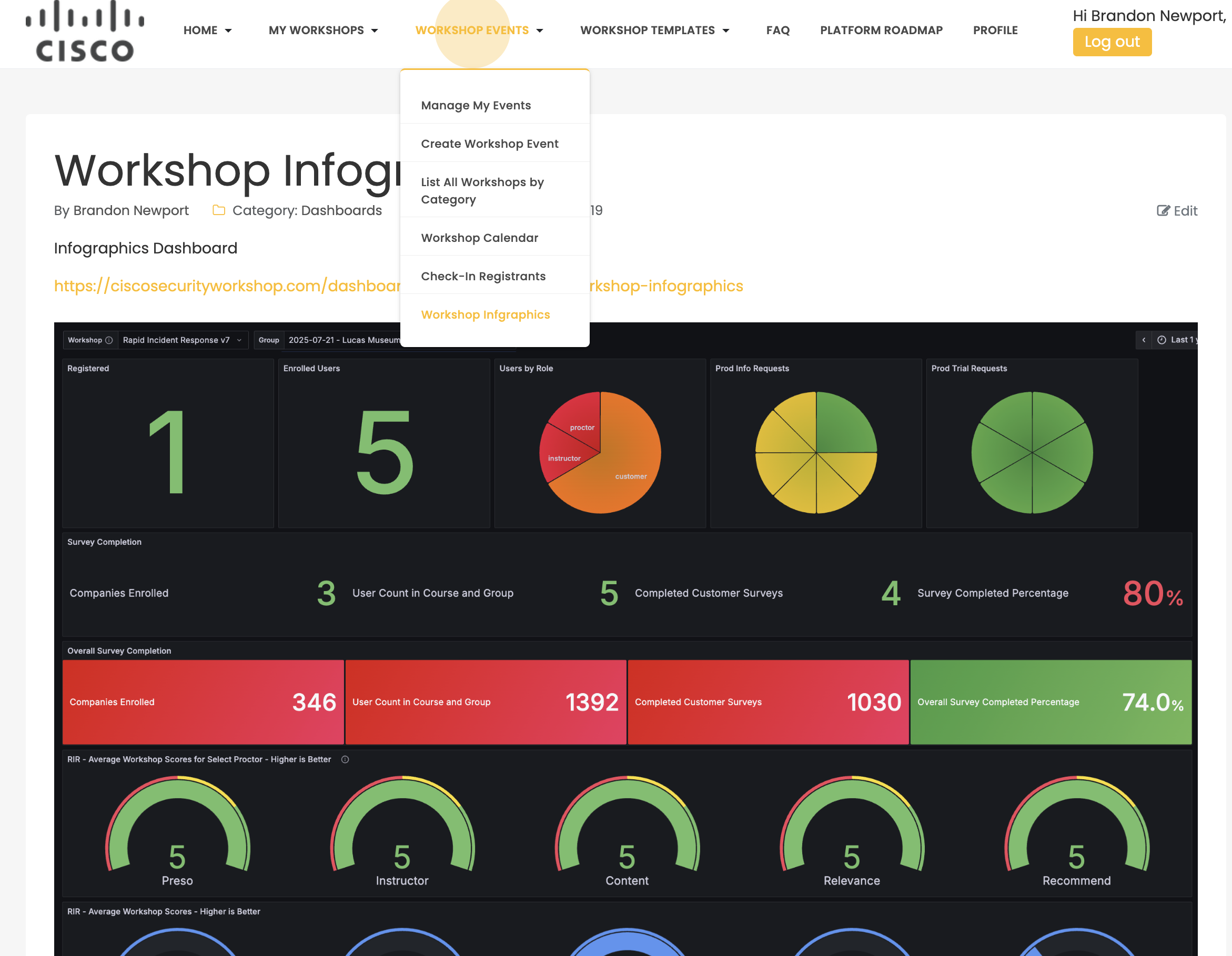
- To see results. Filter on your Course/Workshop and the exact instance or Group Name. You will be able to see all the results from your workshop and how they compare to those from all other workshop events/groups for that particular Workshop.
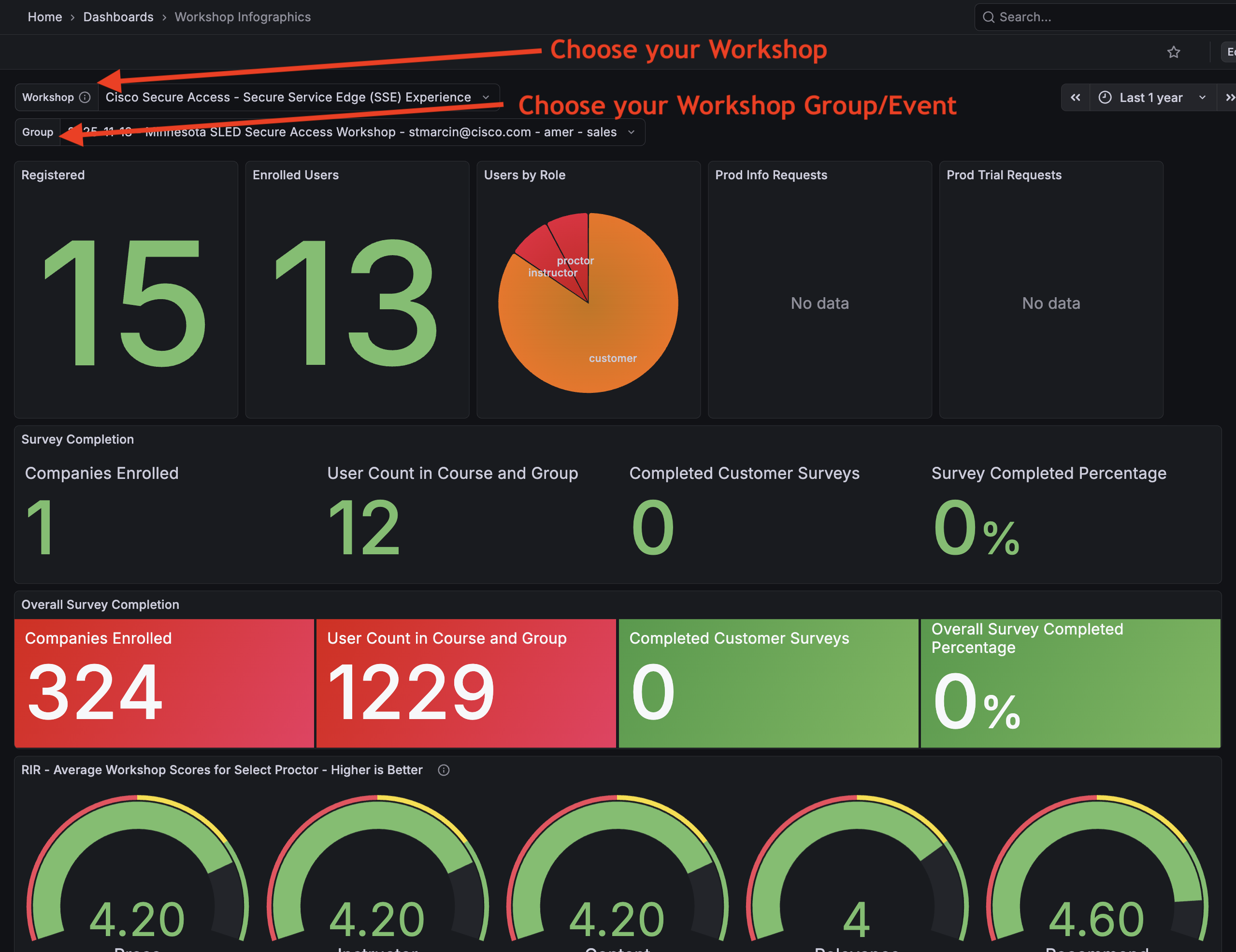
To increase survey completion, please read the FAQ: How Can I Encourage Attendee Survey Completion?
Once attendees have completed the survey, you can see the results by completing the steps below:
Course Assessment Survey
- In the course scroll down to find the first survey (typically called Course Assessment). Click the link to get into it (click the name Course Assessment)
- In the blue menu bar near the top look for the link called Responses, and click it.
- Find the dropdown called Separate Groups, click the drop down and select your course group. Note you can ONLY see your course groups and no one else's groups
- You can now view the responses to the Course assessment on the screen. Note you will need to scroll right in order to see more of the survey results
- You can also download the result by clicking the Download table data as dropdown and selecting the format you wish then click the Download button
Product Information Request Survey
- In the course, scroll down to find the Product Information Request survey. Click the link to get into it (click the name Product Information Request)
- In the blue menu bar near the top, look for the link called Responses, and click it.
- Find the dropdown called Separate Groups, click the dropdown, and select your course group. Note, you can ONLY see your course groups and no one else's groups
- You can now view the responses to the Course assessment on the screen. Note, you will need to scroll right to see more of the survey results
- You can also download the result by clicking the Download table data as dropdown and selecting the format you wish, then click the Download button
Congratulations! You have successfully accessed and downloaded your workshop surveys.
Other Related FAQs:
- How Do I Invite Customers to My Workshop Event?
- What Time Zone Is Used When Creating Events?
- Why Do I Need to Give a Presentation?
- When Do Events Disappear from the Web UI?
- How Do I See Who Participated In My Workshop?
- Can We Have More Than One Proctor for Our Workshop?
- Can I Create a Private Event or Set Permissions on My Event?
- How Long Will It Take to Get Confirmation of My Workshop Event?
- How to Qualify as a Proctor
- What Is a Proctor and What Do They Do?
- What Happens to People on the Waitlist When My Event Is Full?
- How Can I Get Permission to Lead the Train the Trainer Sessions?
- How Can I Encourage Attendee Survey Completion?